I ran into a problem recently where lower environments were running out of space. Clones were getting slower, storage kept climbing, and nothing pointed to the real reason. Production looked fine, but dev and test were struggling with every clone.
The usual suspects were clean. Attachments, logs, audit records, all within normal range. Something else was eating storage, and it took me longer than I’d like to admit to find it.
Two catalog items most admins don’t know about
That’s when I found two items on the Now Support portal that changed how I approached the whole thing: Database Footprint and Cloud Usage Request. Both live under the Support Service Catalog, and I honestly wish I’d known about them earlier.
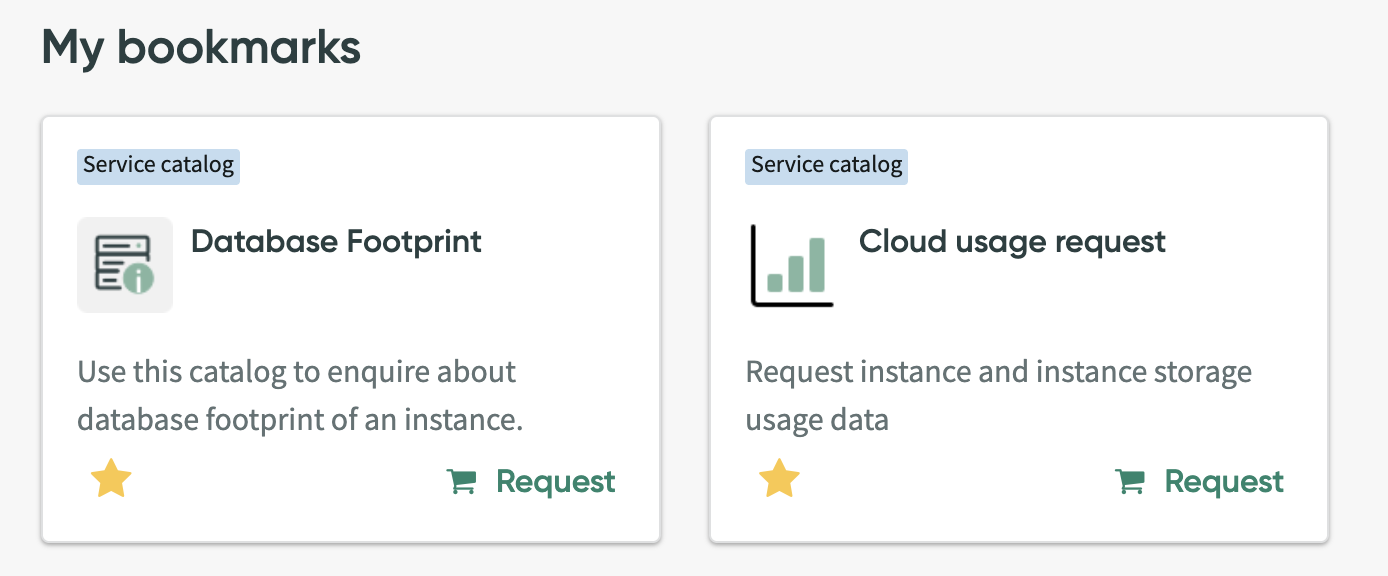
Database Footprint gives you a breakdown of the largest tables in your instance. You pick the instance you want to check, choose how many tables to include in the results (10 to 100), and it comes back with table names and sizes in GB.
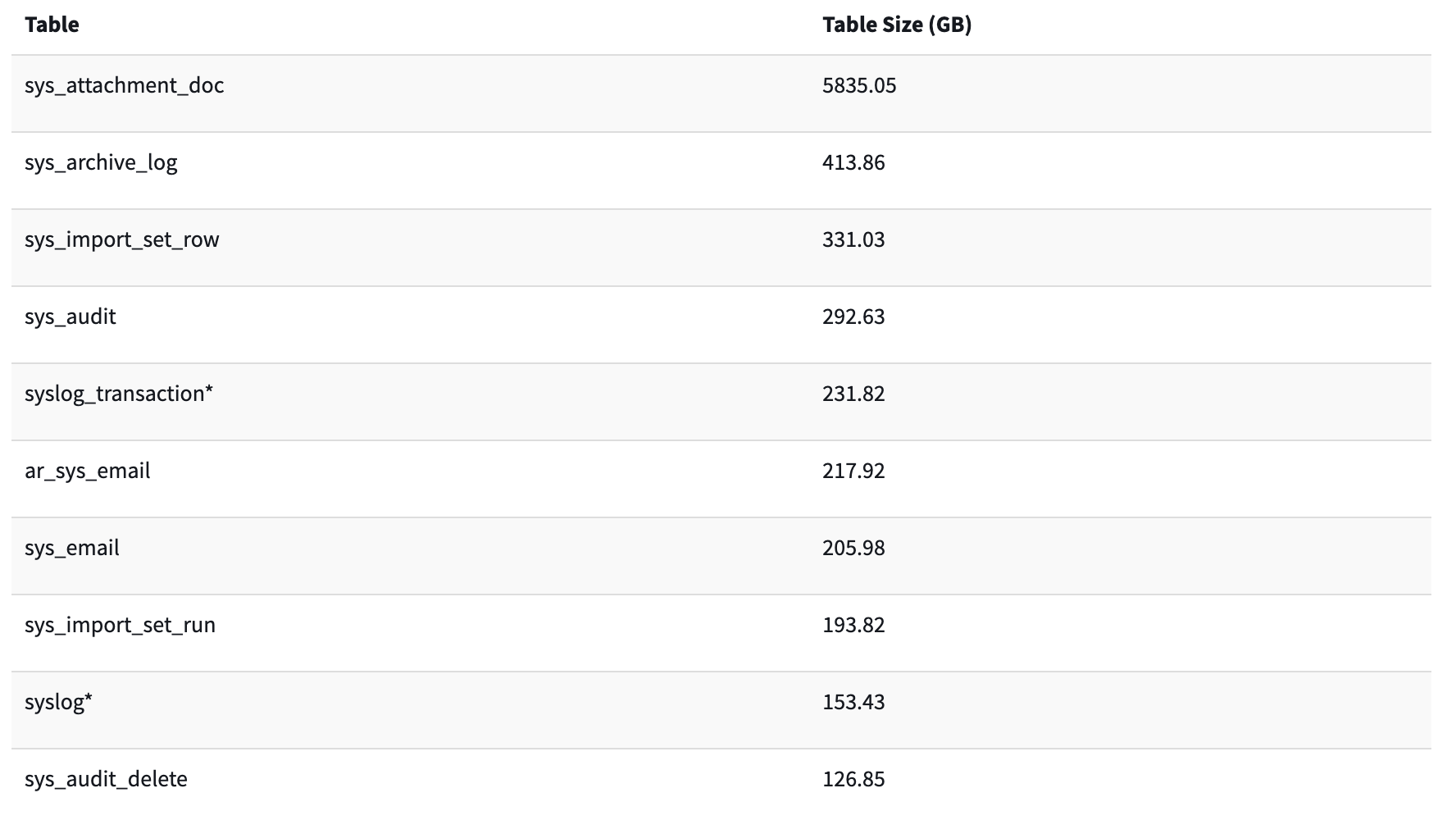
When I ran it, the answer was right there. Archiving tables (the ones prefixed with ar_) were taking up way more space than expected. Not in production, where archiving actually belongs, but in every sub-production instance. Every clone was copying years of archived records into environments where nobody ever touches that data.
Confirming the damage with cloud usage
I followed up with the Cloud Usage Request item to see the full picture across instances. The report shows instance name, purpose (prod or sub-prod), deployment type, creation date, and current usage in TB.
It confirmed what the footprint report showed. Sub-prod instances were bloated because of archive data that had no business being there. The storage kept growing with every clone cycle.
How I fixed it
The fix was straightforward once I understood the cause. Two things:
First, I added all archiving tables to the clone exclusion list. There’s a catch here, though. ServiceNow doesn’t support wildcard patterns for clone exclusions, so you can’t just add ar_* and call it a day. Each ar_ table needs its own entry. It’s tedious, but it’s a one-time setup.
Second, for the archive data already sitting in lower environments, I applied Destroy Rules to clear records that weren’t needed. After the cleanup finished, I opened a Support ticket and asked ServiceNow to run a database defrag on the affected instances. That step is easy to forget, but it reclaims the actual disk space after records are deleted.
Honestly, the whole thing took less than a day to implement. The hard part was figuring out where the storage was going in the first place.
What to check on your own instance
If your sub-production instances are eating through storage after every clone, here’s where I’d start:
Run the Database Footprint catalog item and sort by size. Look for any
ar_tables near the top.Check your Cloud Usage report to see which instances are growing fastest.
Review your clone exclusion list. If archive tables aren’t on it, they’re being copied every time.
Look at audit and log retention policies. ServiceNow keeps a lot by default.
One more thing: every ServiceNow instance comes with 4TB of space. If you’ve purchased extra storage, that goes into a shared pool across all instances. So a bloated sub-prod environment doesn’t just waste space on that instance, it pulls from the same pool your production uses.